Working Online
Browser-based access
FlowlineProSS runs entirely in the cloud, allowing it to operate on virtually any device. There are no limitations related to operating system, CPU capacity, or software compatibility. Users do not need to worry about installations, updates, or maintenance.
Because the program is accessed through a web browser, users benefit from a familiar interface. Standard browser features—such as tabs, buttons, scrolling, and zooming—make it easy to navigate and adapt the interface to any screen size.
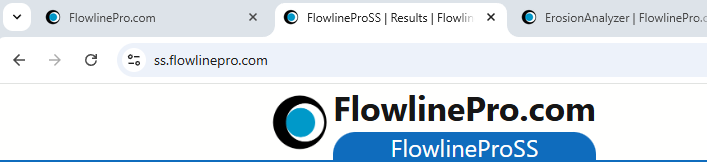
Browser usability highlights
- You can open multiple tools in separate tabs, such as FlowlineProSS, FlowPatternAnalyzer, ErosionAnalyzer, and this user manual.
- Zooming in or out allows you to adjust the interface to fit your screen comfortably.
- Scrolling enables you to stack multiple plots vertically without having to delete previous ones, making it easy to revisit and compare results.
- Hovering over buttons or indicators, and right-clicking on certain elements, reveals context-specific menus in familiar ways.
Cloud-based or local?
Running FlowlineProSS in the cloud offers many advantages, including seamless collaboration with colleagues in other locations. Access can be granted immediately, and testing the software before committing to a license is straightforward.
All data entered into FlowlineProSS is protected under Non-Disclosure Agreements. However, for users who prefer local control, standalone licenses for local installation are also available.
Notes on usage
All simulations are performed in the cloud. The system definition files must be stored in the cloud during active simulations, but they can be downloaded to your local computer for safekeeping.
While defining a system, you might occasionally notice a brief delay when data is transferred between your device and the cloud. This is typically minimal if you are working on a well-functioning internet connection.
Browsers use caching to accelerate page loading by storing previously viewed content locally. While this generally enhances performance, it can occasionally cause issues if the browser loads outdated content from its cache instead of retrieving the most recent version from the server. In principle, this may result in interface elements not updating correctly—for example, indicators failing to change color when expected. Although rare, this behavior has been observed.
If you suspect this has occurred, save your work and reload the browser window. In most cases, a standard reload is sufficient. Alternatively, a hard reload may be chosen to force the browser to bypass its cache and load the latest content directly from the server.
Hard reload shortcuts by browser and operating system
| Browser | Windows / Linux Shortcut | macOS Shortcut |
|---|---|---|
| Chrome | Ctrl + F5 or Ctrl + Shift + R | Cmd + Shift + R |
| Edge | Ctrl + F5 or Ctrl + Shift + R | Cmd + Shift + R |
| Firefox | Ctrl + Shift + R | Cmd + Shift + R |
| Opera | Ctrl + Shift + R | Cmd + Shift + R |
| Brave | Ctrl + Shift + R | Cmd + Shift + R |
| Safari | Not available on Windows | Cmd + Option + R |